Write Checks Screen Details: Difference between revisions
Jump to navigation
Jump to search
(Created page with "* ''Checks can be printed directly from Jewel, using blank or preprinted check stock. Or a separate paper checkbook can be utilized, with each check’s number and information being transferred into Jewel as if it is a check register. Whichever method you use, entering every check and withdrawal into Jewel is imperative.'' * ''The small "Electronic Payment" box just under the treasurer signature line enables you to Electronic Payments...") |
No edit summary |
||
| Line 16: | Line 16: | ||
In addition to the box at the top left, that tells you which bank account this check is being posted to, there are a number of features along the right side of the “Write Checks” screen. |
In addition to the box at the top left, that tells you which bank account this check is being posted to, there are a number of features along the right side of the “Write Checks” screen. |
||
[[File: |
[[File:Write Checks Screen 1.png|center|600px]] |
||
:* If you are finished entering checks, click on the green “OK √” in the top right corner of the page. |
:* If you are finished entering checks, click on the green “OK √” in the top right corner of the page. |
||
| Line 27: | Line 27: | ||
:* The “Electronic Payment” box, which is just under the treasurer signature line, is used when you are recording a payment that didn’t use a paper check. Example: when your electric bill is auto paid or the annual property insurance bill is withdrawn directly from your checking account. |
:* The “Electronic Payment” box, which is just under the treasurer signature line, is used when you are recording a payment that didn’t use a paper check. Example: when your electric bill is auto paid or the annual property insurance bill is withdrawn directly from your checking account. |
||
[[File: |
[[File:Write Checks Screen 2.png|center|600px]] |
||
Revision as of 21:16, 6 December 2025
- Checks can be printed directly from Jewel, using blank or preprinted check stock. Or a separate paper checkbook can be utilized, with each check’s number and information being transferred into Jewel as if it is a check register. Whichever method you use, entering every check and withdrawal into Jewel is imperative.
- The small "Electronic Payment" box just under the treasurer signature line enables you to record a purchase or payment that was debited electronically. It removes the check number but leaves all the other fields intact so that necessary information can be entered.
- All purchases and payments should be entered as checks, never as General Journal Entries.
- Checks can be voided in Jewel.
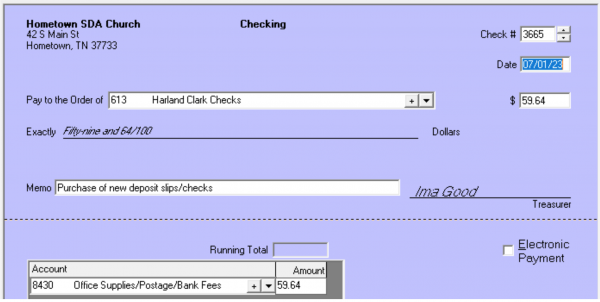
On the Jewel home screen, click on "Write Checks."
- The "Check #" which should match the paper check if one was written
- The "Date" the check was written
- "Pay to the Order of," where you enter the vendor or payee
- "Amount" of the check
- "Memo," a line to tell what was purchased
- And the "Account" - to assign this check to its correct local fund. For example, a check to Lowes might be posted to "Facility Maintenance." A check to the Adventist Book Center might be posted to "Sabbath School Supplies."
The “Account” and “Amount” fields must both be filled out before Jewel will let you proceed. Also, the Running Total in the bottom portion of the check must match the total Amount of the check.
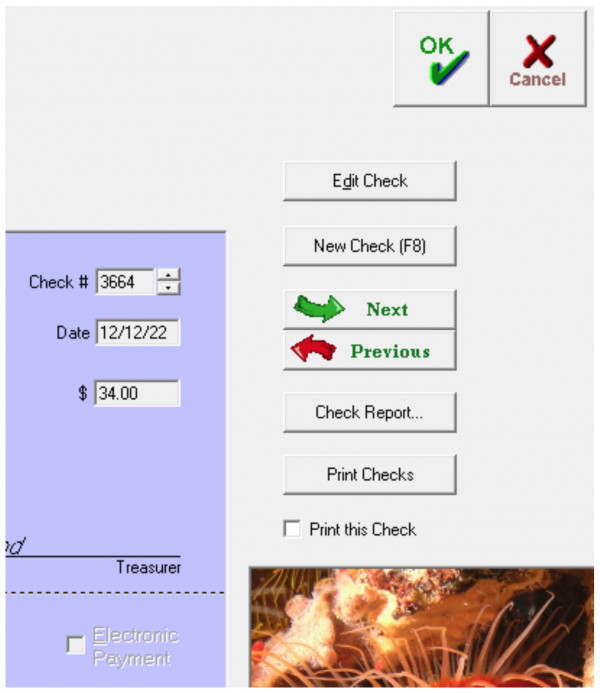
In addition to the box at the top left, that tells you which bank account this check is being posted to, there are a number of features along the right side of the “Write Checks” screen.

- If you are finished entering checks, click on the green “OK √” in the top right corner of the page.
- If you want to leave the screen but don’t want to save the current check, click on “Cancel.”
- “Edit Check” will enable you to edit anything on the check that is currently on screen.
- Once you finish a check, if you need to enter another one, click on "New Check."
- The “Next” and “Previous” buttons scroll backwards or forwards through the already entered checks.
- The “Check Report” button takes you to a list of all the checks that have been written during the month.
- “Print checks” and “Print this Check” are used if you are printing checks from Jewel or want to print a check on plain paper for your records.
- The “Electronic Payment” box, which is just under the treasurer signature line, is used when you are recording a payment that didn’t use a paper check. Example: when your electric bill is auto paid or the annual property insurance bill is withdrawn directly from your checking account.
