1099s - Report Generation Details: Difference between revisions
(Created page with "Jewel does not prepare or print Form 1099-NEC for you. But Jewel '''will''' give you a complete list of possible candidates. From there, you can sort out the actual recipients. This is how it works. # Click on "Reports & Graphs" # At the VERY BOTTOM of the list, select "Form 1099 Payments" # At the center top of the next page, select "Choose Form 1099 Payments" #The box that is outlined in red, below, is a list (in descending order by total amount paid) of all the peopl...") |
No edit summary |
||
| Line 4: | Line 4: | ||
# At the VERY BOTTOM of the list, select "Form 1099 Payments" |
# At the VERY BOTTOM of the list, select "Form 1099 Payments" |
||
# At the center top of the next page, select "Choose Form 1099 Payments" |
# At the center top of the next page, select "Choose Form 1099 Payments" |
||
#The box that is outlined in red, below, is a list (in descending order by total amount paid) of all the people / organizations / businesses that your church has written checks to during the date range that is specified at the top of the page. The Conference usually tops the list, and it goes down from there. |
#The box that is outlined in red, below, is a list (in descending order by total amount paid) of all the people / organizations / businesses that your church has written checks to during the date range that is specified at the top of the page. The Conference usually tops the list, and it goes down from there.[[File:1099's - Making a List 1.png|center|600px]] |
||
[[File:1099's - Making a List 1.png|center|600px]] |
|||
#*I have obscured names in this database for privacy purposes. Yours will have a vendor name on every line. |
#*I have obscured names in this database for privacy purposes. Yours will have a vendor name on every line. |
||
#*The vendors (which are the payees) are in the smaller top box, and the “Payments” box at the bottom of the screen details all the payments that you made to the particular vendor that is highlighted in the top box. Right now the Georgia-Cumberland Conference is clicked, so you are seeing remittance checks below. |
#*The vendors (which are the payees) are in the smaller top box, and the “Payments” box at the bottom of the screen details all the payments that you made to the particular vendor that is highlighted in the top box. Right now the Georgia-Cumberland Conference is clicked, so you are seeing remittance checks below. |
||
Revision as of 18:45, 26 November 2025
Jewel does not prepare or print Form 1099-NEC for you. But Jewel will give you a complete list of possible candidates. From there, you can sort out the actual recipients. This is how it works.
- Click on "Reports & Graphs"
- At the VERY BOTTOM of the list, select "Form 1099 Payments"
- At the center top of the next page, select "Choose Form 1099 Payments"
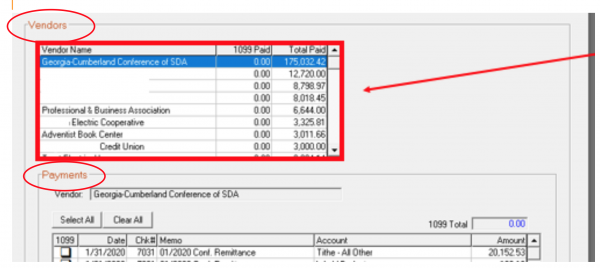
- The box that is outlined in red, below, is a list (in descending order by total amount paid) of all the people / organizations / businesses that your church has written checks to during the date range that is specified at the top of the page. The Conference usually tops the list, and it goes down from there.
- I have obscured names in this database for privacy purposes. Yours will have a vendor name on every line.
- The vendors (which are the payees) are in the smaller top box, and the “Payments” box at the bottom of the screen details all the payments that you made to the particular vendor that is highlighted in the top box. Right now the Georgia-Cumberland Conference is clicked, so you are seeing remittance checks below.
- Scroll down through each of your vendor names, one by one. Pass over utility companies, mortgage companies, credit card companies, insurance providers and businesses that you purchased items but not services. They do not require Form 1099-NEC.
- When you come to a vendor that provided you a service, click on it. Or if you see a vendor that you are not sure about, click on it. Once you click on a vendor, you will see below it a list of

all the checks that you wrote to that person/business. Here is a familiar name. I wonder if they need a 1099? Let’s click on it.

Once we click on it, it turns blue. And the “Payments” box below the Vendor box now shows us all the payments that were made to that vendor for the entire year.
In this 1099 choosing process, your memo is the star of the show. Imagine if the memo was blank, you would have nothing to help you with your analysis. (Yet another reason to build those memo-writing skills.) This treasurer has written very clear and detailed memos, so we can tell what these checks were for.
Look at each of the checks. Were you paying for a product or a service? Or was it a reimbursement? Remember, products or reimbursements do not require a 1099, so we would not select either one of these checks as being 1099-worthy.
Speaking of Reimbursement, remember I have stressed the need to put “Reim” at the beginning of the memo line of each check that is a reimbursement? This 1099 process is a big part of why we do that. Because we can quickly dismiss these checks without pausing to try to remember they are for or having to look them up. So we leave this vendor and continue scrolling. 4 This one looks promising! Let’s click on it. The memo says it is for installation. This is definitely a service. So we click on each little 1099 box to the left of each check. While we are here: If one of these checks had said “supplies” and the other check said “labor,” we would have checked off the labor check but not the supplies check. But since the vendor didn’t give a separate invoice for each, we will issue Form 1099-NEC for the total amount. Also, notice that the name of the vendor includes “Inc”. I will show you how to verify that in a minute. But in the meantime, we are making of list of all possible recipients, so check them off. We can trim the list down later. As we scroll, we click on each check that was payment for a service. Click on “Select All” if all the checks qualify. One other thing to watch for is “Same Vendor – Different name scenarios. If you paid $460 to John Smith and $580 to Smith, John, that vendor, combined, has passed the $600 or more threshold. When writing checks to vendors, pick a name and use it consistently and you will avoid this problem. 5 If you think you might have any of those, you will have to go below the $599 mark on your vendor list to find them. Otherwise, you can stop scrolling at $599. After you have completed your tour of the Vendor Names, look to see if you paid your pastor or anyone else on GCC Local Payroll a financial gift of any amount. (Tutorial #6600) Click on those payments to add them to the list. You can unclick them later if you see that you created and sent the “Employee Gift Reporting Form” for that gift. (Tutorial #1080) Now you can click on the green OK in the top right corner and you will have a list that tells you how many vendors you have chosen as possible Form 1099-NEC recipients. Yours will be a bit different but this one looks like this: Next we need to go back over our list, because if a business is incorporated in your state, they do not need Form 1099- NEC. So we look them all up to eliminate, as candidates, the ones that are incorporated. Even if a business has the word “Inc” in their name, we need to verify that their filing is current. Sometimes it expires, and they don’t renew it, but they still have “Inc.” on their invoices. How do we find out? Each state has an up to date listing of all corporations in their state. If your state is not below, do a Google search on “(your state) secretary of state business search.” 6 Here are links to search for Tennessee corporations: https://tnbear.tn.gov/Ecommerce/FilingSearch.aspx Georgia corporations https://ecorp.sos.ga.gov/BusinessSearch North Carolina Corporations (This site is currently down. Hopefully by the time you need it, it will be fixed.) https://www.sosnc.gov/online_services/search/by_title/_Business_Registration Alabama Corporations https://arc-sos.state.al.us/CGI/CORPNAME.MBR/INPUT If you search and there are no records, that company is not incorporated. If their name is there, make sure that their incorporation status is “Active” and if there are multiple businesses with the same name, use their mailing address to choose the correct one. If you live close to the line of another state, Chattanooga for example, make sure you check in TN and GA both for the incorporation records of a company. Looking at their address on the invoice you received from them can often tell you in which state to search. If you can't find a company in the database but are not sure, it is better to file Form 1099-NEC on a business that doesn’t need it than to miss one that should have been sent. Oh, and if they are incorporated, go back to Jewel and unclick them from the list. If you are not secure in your Google skills, or if you are new to all of this, don’t hesitate to contact me and I can walk you through it the first time. Or if you have done it but just want me to verify that you are correct, I am happy to do it. So now we’ve made our list and we’ve checked it twice. Now to actually fill out Form 1099-NEC. Coming up next! Corresponding video: 11.2 – Making a List and Checking it Twice. Find at https://www.gccsda.com/auditing/10963 For more tutorials on IRS AND LABOR DEPT RELATED POLICIES, see section 6500 on the gccsda.org auditor webpage. This information has been brought to you by the Georgia-Cumberland Conference Audit Team Created by Linda McCabe. Edited 8/25/2025 7